Most of the time an agency spends on a client report has nothing to do with writing it. It's the twenty minutes before that: opening the dashboard, pulling this month's rankings, checking where a competitor moved, and pasting all of it somewhere the writing tool can see it.
That step repeats for every report, every month.
Connecting AI to local SEO data removes it. We built the MCP Server so an AI assistant reads the numbers directly, inside the same tool doing the drafting.
Where Local SEO Report Time Goes
Ask any agency owner how long a client report takes and they'll usually answer with the writing time. That's the part they notice.
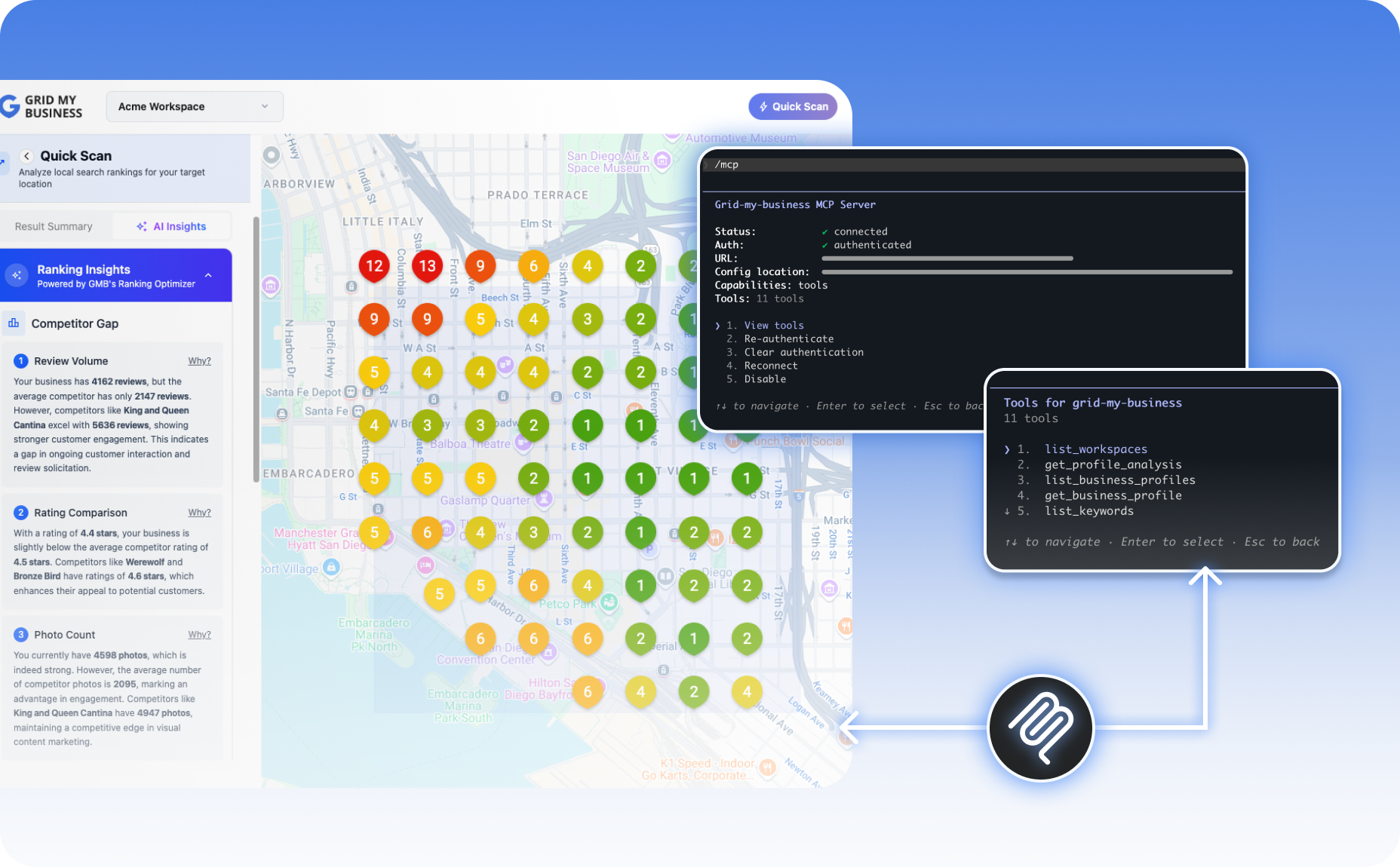
The part they don't notice as clearly is everything before it:
- Pulling this month's rank positions
- Checking where a competitor gained ground
- Scanning for new reviews across every location
- Copying performance numbers into a doc, a spreadsheet, or a prompt
None of it is billable, and it repeats for every client, every reporting cycle.
If you're running fifteen client accounts and gathering the data for one report takes fifteen minutes, that's three and a half hours a month spent on exporting before a single sentence gets written. At five clients that cost is manageable. At fifty, it shows up every single week.
Connecting AI Tools to Your Local SEO Data
The Grid My Business MCP Server gives AI assistants direct read access to account data. Once it's connected, an assistant can retrieve live numbers on request, without you opening a dashboard first.
We built it to work across the tools agencies are already using to draft reports and manage client work:
- Claude Desktop
- Claude Code
- Codex (IDE extension, CLI, and app)
- Cursor
- Antigravity
If you already use one of these for drafting, you don't need to change tools or learn a new interface. The connection works inside the tool you already have open:
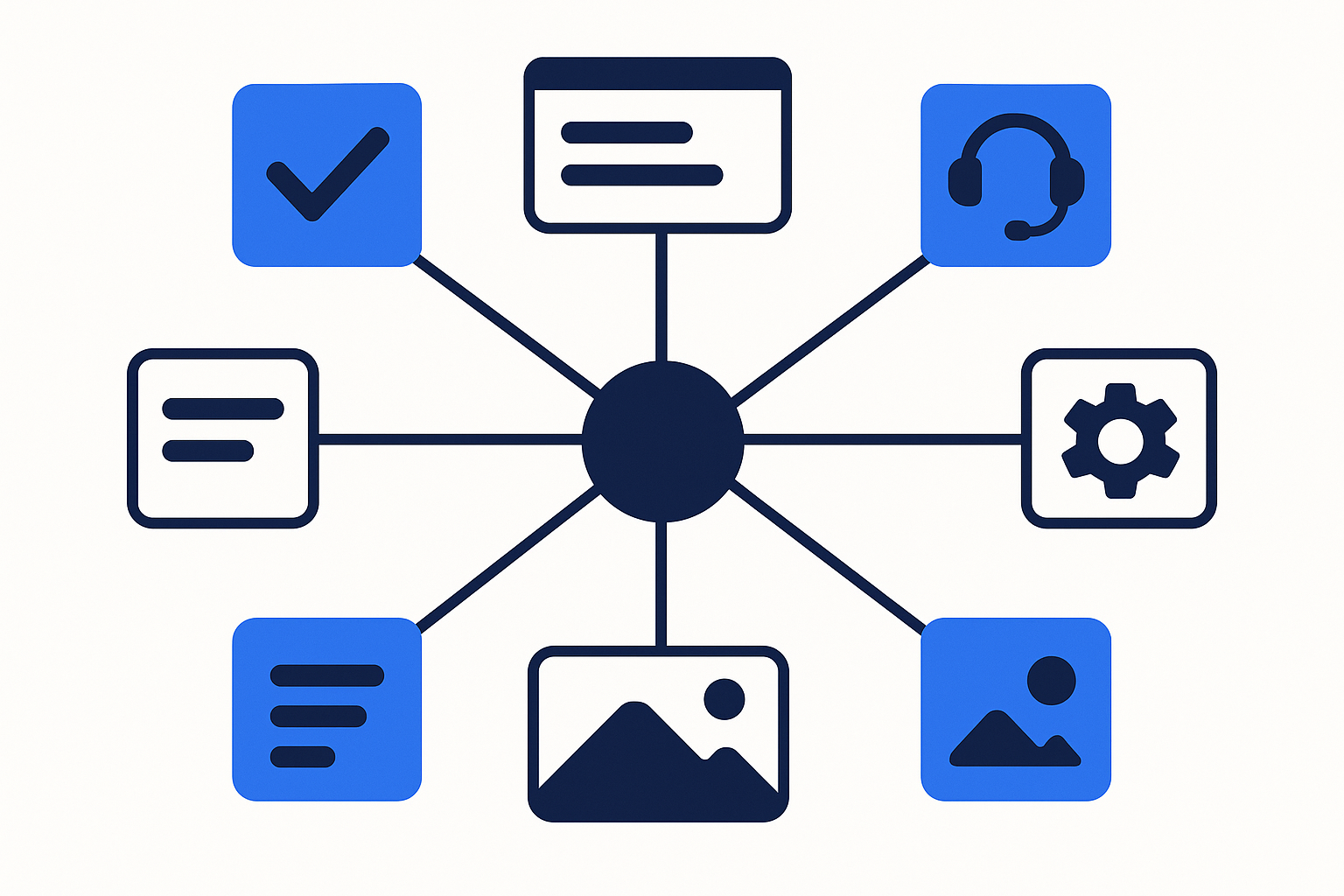
Access is read-only. The assistant can retrieve rankings, competitor data, and profile signals, but it can't edit a listing, change account settings, or touch anything you haven't already set up yourself. That matters if you're handing an AI tool a line into live client accounts.
The connection also isn't limited to a single client. If you're running multiple workspaces, you can query across whichever location or client account you need, from the same conversation.
What Data Is Accessible Through the Integration
Access isn't limited to a single metric. The integration covers the categories that make up a local SEO report, so an assistant can answer full report questions.
If you're preparing a monthly report, you can ask where a location stands before writing a single word:
- Ranking data showing exactly where a location stands for its tracked keywords
- Competitor positions revealing the gap between a client and their closest rival
- Profile analysis identifying what's dragging down a client's GMB Score
- Review sentiment summarizing the review story across a location without reading each one individually
- Performance metrics showing calls and clicks the listing has driven, on demand
Performance metrics are the most requested of these. A client asking "did the new listing photos do anything" used to mean logging in and checking manually. Now it's a question an assistant can answer directly, mid-conversation, using the same account data it already has access to.
What This Looks Like in a Real Client Report
Take a plumbing client with three locations, and walk through what changes.
Several Browser Tabs for Every Report
Building this month's report used to start the same way every time: log into Grid My Business, screenshot the rank grid for each location, export the review summary, cross-check the competitor who's been closing the gap, then paste all of it into whatever doc or prompt turns it into a client-ready report.
Now It's One Request
With the MCP Server connected, the opening step becomes a single request. You can ask the assistant directly: "Pull this month's rankings and review sentiment for all three locations, and flag any location where a competitor gained more than two positions."
The assistant answers using the live account, the same data it would have taken several browser tabs to gather manually. What used to be fifteen minutes of exporting becomes one request, and you move straight to deciding what the numbers mean for the client, the part that needs a person.
The report content is unchanged. The gathering time drops.
What the Connection Doesn't Do
The assistant retrieves the numbers, it doesn't decide what they mean. Whether a rank drop is worth flagging to a client, or whether a review sentiment shift points to a real service issue, is still a judgment call for the person running the account:
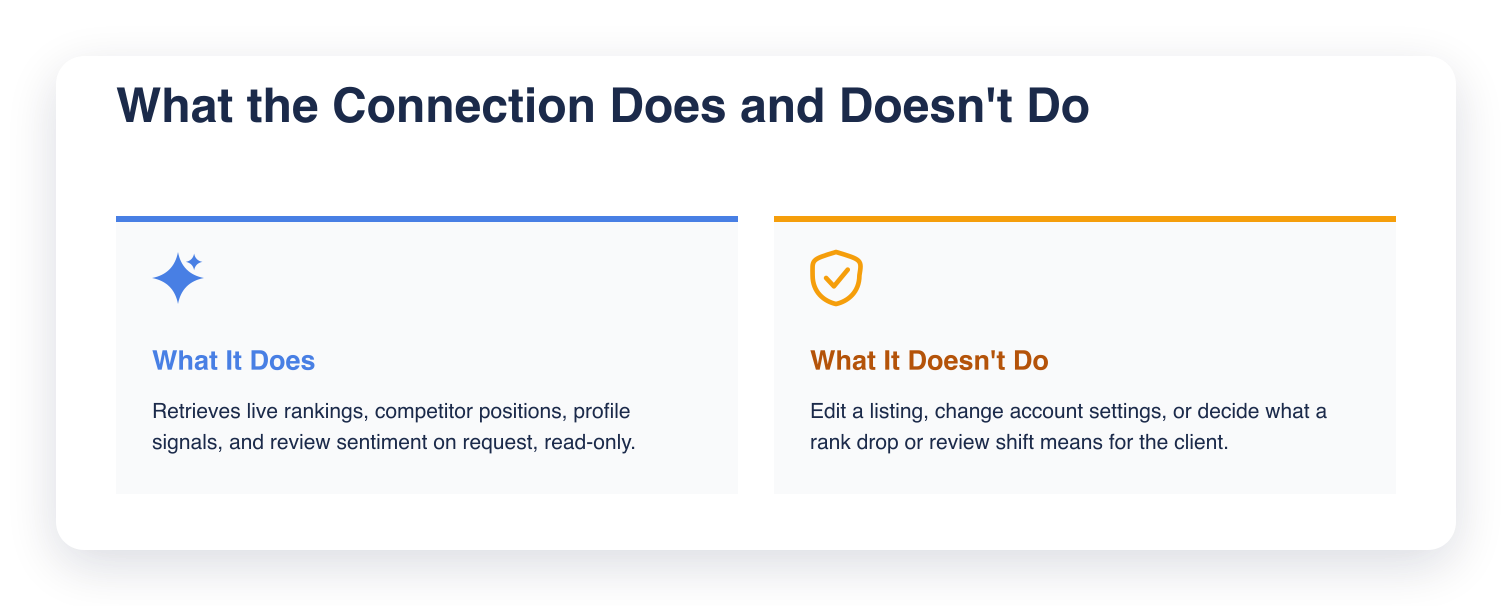
The MCP Server removes the data-gathering step, not the analysis that comes after it.
Setting Up the Connection Step by Step
Setting up the connection doesn't require a new account or a separate login. It runs on top of the Grid My Business account you already have, and the exact step depends on which tool you're connecting.
#1 Find the setup instructions for your tool at gridmybusiness.com/docs/mcp-server. Claude Code and Codex connect with a single CLI command; Claude Desktop, Cursor, and Antigravity connect by adding a short configuration snippet to that tool's config file.
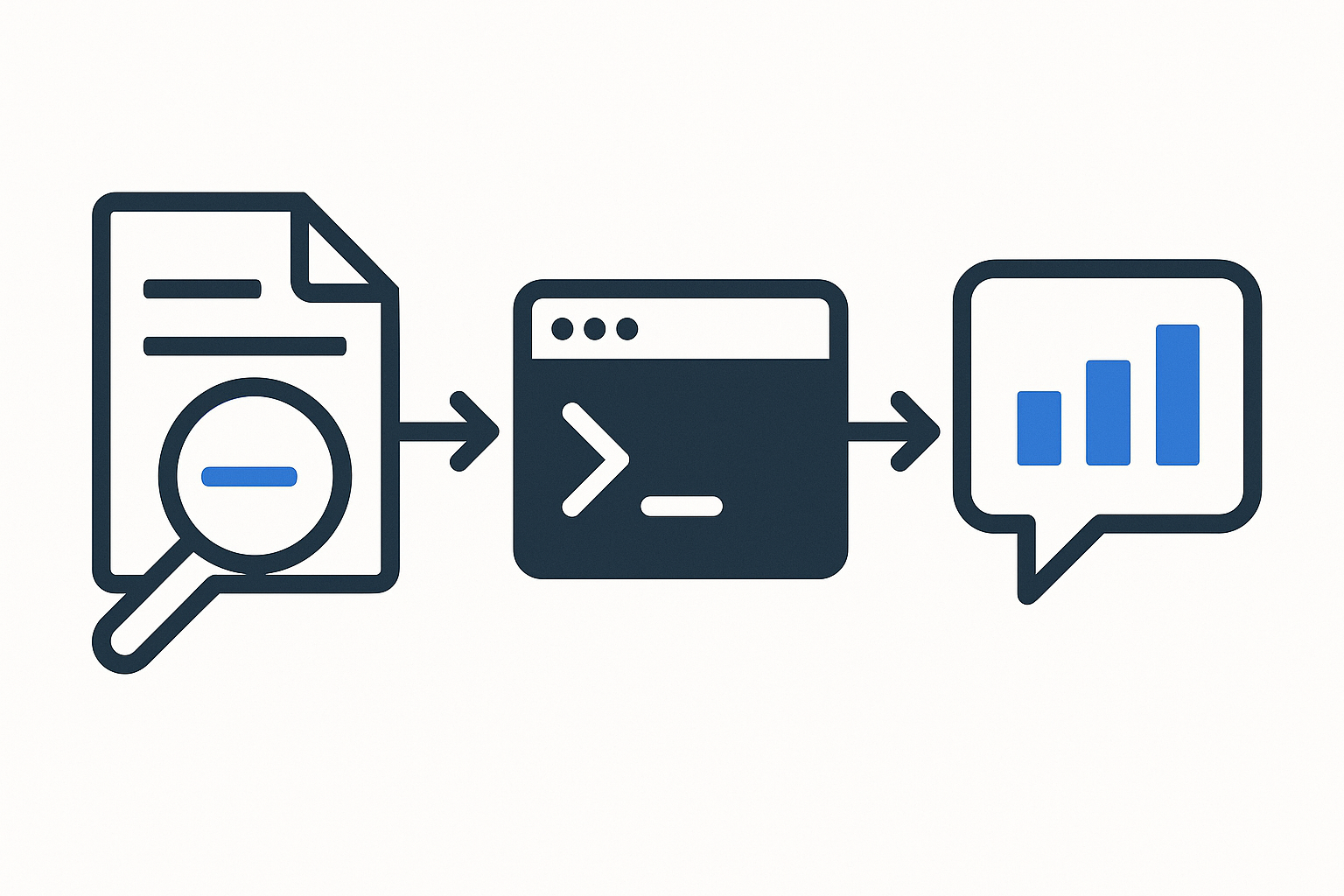
#2 Run the command or save the config file for your tool, then restart or reconnect if your tool requires it.
#3 Ask for what you need, directly in the tool. "Pull this month's rankings for a client" or "What's dragging down this profile's GMB Score" both work as plain requests once the connection is live.
From there, the export step is gone. If you're managing several locations, you can ask for one client's numbers, then the next, without opening a new tab for each. The assistant reads the account directly and you skip straight to the part of the report that needs a human: the analysis and the recommendation.
Wrapping Up
Setting up the MCP Server takes minutes and removes the export step from every report going forward.
Connect it to Claude Desktop, Claude Code, Codex, Cursor, or Antigravity and that step goes away, without changing how your agency writes its reports. The assistant reads the account directly, with read-only access and no changes to your live data.
If your team already drafts reports inside an AI tool, head to your Grid My Business dashboard and connect the MCP Server to see it pull live data on the first request.
Frequently Asked Questions (FAQs)
Q: How is the MCP Server different from exporting a CSV or PDF report?
A: A CSV or PDF is a snapshot from the moment it was exported. The MCP Server gives an AI assistant a live connection, so the data it retrieves reflects the account at the moment of the request rather than whatever was last exported.
Q: Will connecting the MCP Server slow down or affect my Grid My Business account?
A: No. The connection only reads existing account data on request. It doesn't run new scans, change settings, or add any processing load beyond a standard data query.
Q: Do I need technical or developer experience to set up the connection?
A: No coding is required, but setup does involve either running one command (Claude Code, Codex) or pasting a short configuration snippet into a config file (Claude Desktop, Cursor, Antigravity). Full steps for each tool are at gridmybusiness.com/docs/mcp-server.
Q: Can I disconnect the MCP Server if I no longer want an AI tool to access my data?
A: Yes. Removing the command or configuration snippet from your AI tool ends its access to your account.
Q: Does every team member need their own MCP connection, or can one connection serve a whole agency?
A: Each connection is set up individually per tool, so check your AI tool's own settings for whether a connection applies per user or per workspace.